




The Birla Institute of Technology and Science Admission Test (BITSAT) 2026 application process is going to start from December 15, 2025. Every year, lakhs of students apply for BITSAT to secure admission to BITS campuses across Pilani, Goa, and Hyderabad, making it one of the most competitive engineering entrance exams in India.
| Photo & Signature Upload Guide | Download PDF |
- If you are planning to apply for BITSAT 2026, you must know that uploading your signature correctly is one of the most important steps in the application process.
- According to the BITSAT information brochure, candidates need to upload scanned copies of their photograph and signature in the prescribed size and format, as incorrect specifications may lead to rejection.
- The signature you upload must match the one you will write on your hall ticket and attendance sheet on exam day. Any mismatch can result in the cancellation of your candidature.
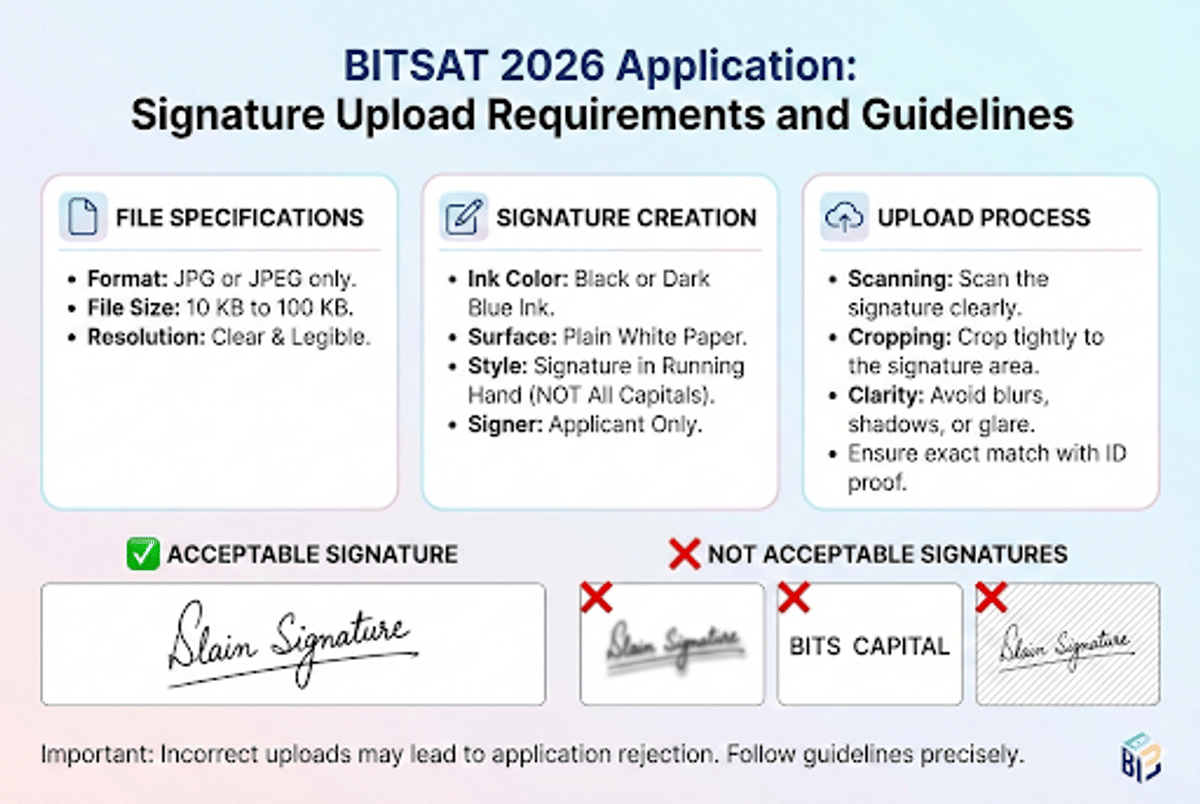
5-12% of applications typically face issues due to incorrect photo or signature uploads, ranging from wrong size and format to mismatched signatures. So you should understand the signature Upload Requirements and Guidelines
Also Read:
- BITSAT 2026 registration is set to begin on December 15. Check how to register and exam dates
- BITSAT 2026 exam dates, registration details, syllabus, mock tests and previous year papers.
Understanding Signature Upload in BITSAT 2026
What Is Signature Upload?
When you're filling out the BITSAT 2026 form, make sure to upload a digital copy of your signature. This signature will be used to prove it's you throughout the whole admission process.
Why Is Signature Upload Important?
- Your signature helps BITS Pilani identify you during the exam
- The signature on the application form is matched with the signature on your hall ticket
- It is also matched with the signature you write on the attendance sheet at the exam centre
- If signatures do not match, your exam may be cancelled
BITSAT 2026:Complete Guide for Uploading Your Photo & Signature
Also Read
- Check the preparation plan and important topics to crack BITSAT 2026
- Check Best Books for BITSAT 2026 Preparation
Basic Requirements for Signature Upload
- Make sure it's a JPG or JPEG. Other formats won't work.
- The file size needs to be between 10 KB and 100 KB. We won't take it if it's too small or too big.
- Sign on plain white paper. No lines, patterns, or colours in the background, please.
- Use a black ink pen only: no other colours.
- Sign it like you normally would - in cursive.
- Scan at 200 DPI for the clearest image.
| Requirement | Details |
|---|---|
| File Format | JPG or JPEG only |
| File Size | Between 10 KB to 100 KB |
| Background Color | Plain white background |
| Pen Type | Black ink pen only |
| Paper Type | Plain white paper (no lines) |
| Signature Style | Running handwriting |
| Resolution | 200 DPI (Dots Per Inch) |
| Color Setting | True color |

Source: BITSAT Official Website
Ques: What happens if you upload your signature in PNG format?
Ans: BITSAT only accepts JPG or JPEG format for signature upload so your application may be rejected.
Ques: Can you use a blue pen to sign?
Ans: Only a black ink pen will be applicable on plain white paper for your signature.
Step-by-Step Guide to Create a Signature for Upload
Creating the right signature for upload is simple if you follow these steps:
Materials You Need:
- Plain white paper (A4 size)
- Black ink pen
- Scanner or smartphone with a camera
Steps to Create Your Signature:
- Take a clean white A4-sized paper.
- Place it on a flat surface.
- Use a black ink pen.
- Sign your name in your normal handwriting style.
- You should make sure that your signature is clear and not too small.
- You should leave at least 2 inches of white space around your signature.
- Do not write anything else on the paper.
Scanning Your Signature
- Scanner Resolution (200 DPI): DPI is dots per inch. A higher DPI gives you a better image. Make sure your scanner is set to 200 DPI.
- Colour Mode (True Colour): This setting grabs all the colours just right. Even if you're only using black ink, using true colour gives you the best shot at a good scan.
- File Format (JPG/JPEG): When you save after scanning, save as either JPG or JPEG.
- Output Size (10 KB to 100 KB): Check the file size after you scan. If it’s smaller than 10 KB or bigger than 100 KB, tweak the settings until it's right.
- Image Dimensions (3.5 cm × 1.5 cm): Your signature image should be 3.5 centimetres wide and 1.5 centimetres high.
| Scanning Parameter | Setting Required |
|---|---|
| Scanner Resolution | 200 DPI |
| Color Mode | True Color |
| File Format | JPG/JPEG |
| Output Size | 10 KB to 100 KB |
| Image Dimensions | 3.5 cm × 1.5 cm (Width × Height) |
How to Apply: Apply Now & Full Notification | Application Form Correction Details
Documents Required: Photo Size & Signature Specifications
Ques: Can you use your phone camera if you don’t have a scanner?
Ans: Yes, just use your phone to snap a pic of your signature. Just make sure the lighting is good and there aren't any shadows.
Ques: How should you check the file size of your signature?
Ans: Just right-click the file. If you're on Windows, pick Properties. If you're on a Mac, choose Get Info. You'll see the file size there in KB.
Common File Size Issues and Solutions
Understanding File Size Problems
Many students face problems when their signature file size is either too small or too large. Here is how to fix these issues:
| Problem | Cause | Solution |
|---|---|---|
| File size less than 10 KB | Image quality is too low, or the image is too small | Increase scanner resolution or take a larger signature |
| File size more than 100 KB | Image quality is too high, or the image contains extra white space | Compress the image using MS Paint or an online compressor |
| Wrong file format | Saved in PNG, BMP, or other format | Convert to JPG/JPEG using any image editor |
| Blurry signature | Low scanner resolution or shaky camera | Rescan at 200 DPI or retake the photo in good lighting |
Also Read:
File Size Issues:
- Less than 10KB: This means your picture is bad quality. They won't be able to see your signature well, so make the file size bigger.
- More than 100KB: It's too big! The system won't upload it. Compress the file or make it smaller.
- Wrong format: Save as JPG or JPEG. Anything else won't work.
- Blurry Signature: A blurry signature cannot be verified. Always ensure clear scanning or photography.
Tools to Adjust File Size
Free Tools You Can Use:
- MS Paint (available on all Windows computers)
- MS Office Picture Manager
- Online image compressor websites
- Photo editing apps on smartphones
Q: Will compressing reduce the quality of your signature?
A: If you compress too much, yes. But reducing to 80% or 90% usually keeps good quality while reducing file size.
Upload Process on BITSAT Portal
How to Upload Your Signature
Once you have your signature file ready, follow these steps to upload it on the BITSAT portal:
| Step Number | Action | What to Do |
|---|---|---|
| Step 1 | Log in to Portal | Visit www.bitsadmission.com and log in with Application Number and Password |
| Step 2 | Navigate to the Upload Section | Find the document upload section in your application form |
| Step 3 | Click Choose File | Click on the "Choose File" or "Browse" button next to Signature |
| Step 4 | Select Your File | Choose your signature JPG/JPEG file from your computer |
| Step 5 | Preview Image | Check the preview of your signature on screen |
| Step 6 | Click Upload | Click the "Upload" button to save your signature |
| Step 7 | Verify Upload | Make sure you see a success message |
| Step 8 | Check Application | Go back and check if signature appears in your application |
Exam Insights: What Makes BITSAT Different? | Official Notification & Apply Link
Score Analysis: What is a Good BITSAT Score? | What is a Moderate Score?
Always preview your signature before uploading to ensure it looks clear. After uploading, go back and check if your signature appears correctly in your application preview. Don't close the window or refresh the page while uploading.
Common Upload Errors
- File Size Problems: These happen a lot. Just double-check your file size before you upload it.
- Wrong Format: Only JPG or JPEG files work. Other formats won't.
- Upload Issues: The site might be slow if lots of people are using it. Try uploading later when it's not so busy.
- Quality Issues: If the system says the quality isn't good enough, scan your signature again, but better this time.
| Error Message | Meaning | How to Fix |
|---|---|---|
| "File size exceeds limit" | File is larger than 100 KB | Compress your file using MS Paint or an online tool |
| "Invalid file format" | File is not JPG/JPEG | Convert your file to JPG format |
| "File size too small" | File is smaller than 10 KB | Increase quality or resize to larger dimensions |
| "Upload failed" | Internet or server issue | Refresh the page and try again, check the internet connection |
| "Image not clear" | Signature is blurry or faded | Rescan with better quality settings |
| Registration Mistakes to Avoid PDF | Download PDF |
|---|
Ques: Will your signature be visible to everyone?
Ans: No, only authorised BITS officials will see your signature for verification purposes.
Ques: Can you upload the same file you used for another exam?
Ans: Only if it meets all BITSAT requirements. It is better to create a fresh signature specifically for BITSAT.
Signature Verification Process
How Your Signature Will Be Checked
Your signature goes through multiple verification stages during the BITSAT process.
| Stage | When | What Is Checked |
|---|---|---|
| Stage 1 | During Application | System checks file size, format, and basic quality |
| Stage 2 | After Submission | Officials verify signature clarity and authenticity |
| Stage 3 | At Exam Centre | Your signature on the attendance sheet matches the application |
| Stage 4 | On the Hall Ticket | The signature printed on the hall ticket is verified |
| Stage 5 | During Counselling | Signature on documents is cross-verified |
What Happens If Signatures Do Not Match
- Exam Cancellation: If your signature on the attendance sheet looks very different from your uploaded signature, the invigilator can cancel your exam on the spot.
- Application Rejection: If officials find your signature suspicious during verification, they may reject your entire application.
- Admission Cancellation: Even if you get admitted, a signature mismatch discovered later can lead to admission cancellation.
- Legal Action: Intentional signature fraud is a serious offence and may have legal consequences.
| Mismatch Stage | Possible Consequence |
| At the exam centre | Your exam may be cancelled immediately |
| During verification | Your application may be rejected |
| At counselling | Your admission may be cancelled |
| After admission | You may face legal action for fraud |
Ques: How similar should your signatures be?
Ans: They should be at least 80-90% similar. Minor variations are okay, but the overall style and look should match.
Ques: What if your signature naturally varies each time?
Ans: Practice signing the same way multiple times before the exam. You can keep a copy of your uploaded signature for reference.
Check More:
To sum up, before uploading your signature, you should see that the signature is done with a black pen. The paper should be plain white with no lines. Your signature should be in running handwriting. The file format should be in JPG or JPEG. The file size should be between 10 KB to 50 KB. The background should be completely white.



Comments